
Rally Delivery Portal
English Guide for Delivery Portal VPP
The Delivery Portal VPP is used to deliver Broadcast Masters VPP. These deliveries must meet the requirements for Broadcast Master HD SDR (available only in German). This is generally ensured by the source file provided for download in Rally for VPP editing.
Gateway functions such as work orders and monitoring pages are explained below.
VPP Work Orders
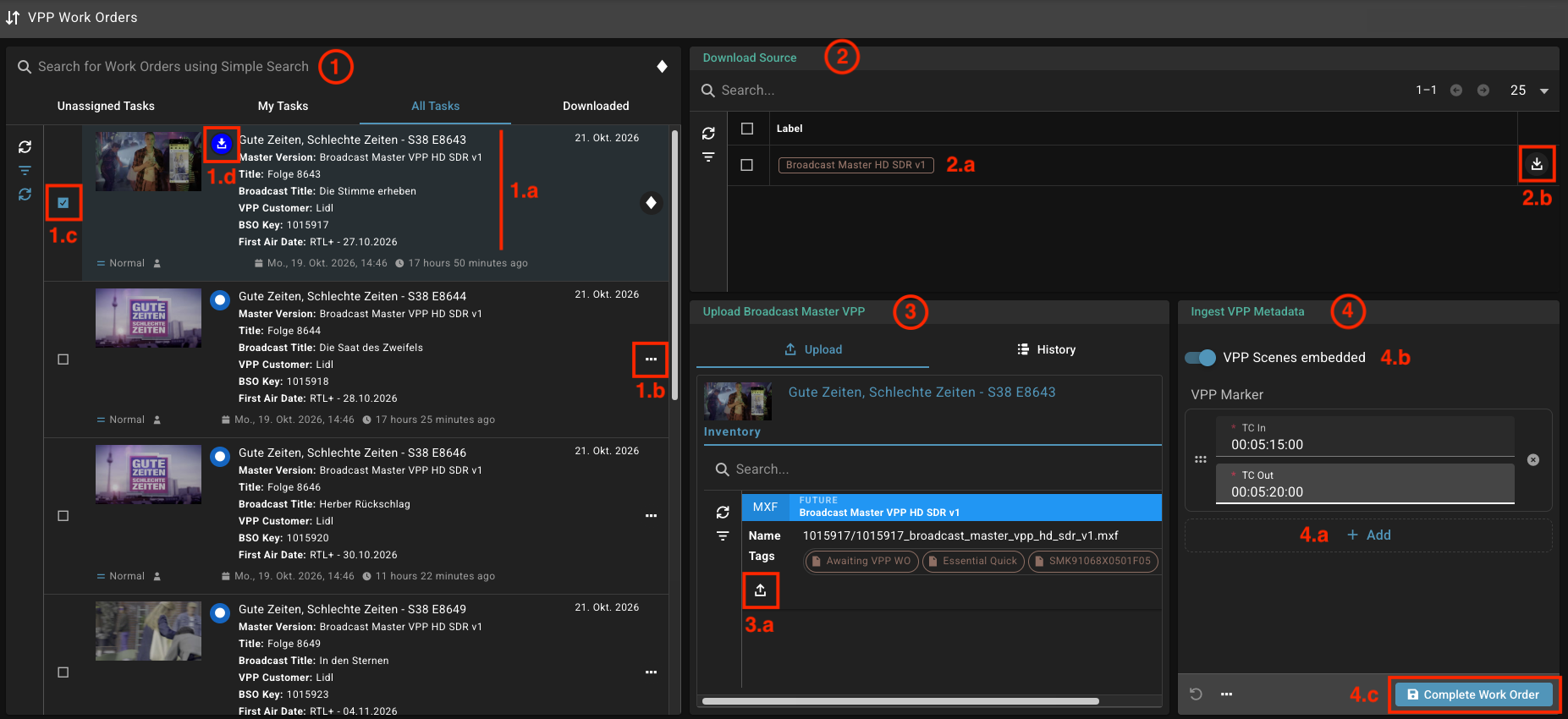
The “VPP Work Orders” page consists of four widgets: the work orders on the left (item 1 in the screenshot), as well as “Download Source” (2), “Upload Broadcast Master VPP” (3), and “Ingest VPP Metadata” (4) on the right.
There is one work order for each Broadcast Master VPP to be created. These are orders, which contain metadata about the episode or film to be processed (Section 1.a in the screenshot) as well as information regarding the deadline, the operator, and the status of the work order. In addition to titles and counts, the metadata also includes the first air date and the VPP customer for the corresponding VPP campaign.
Take Work Order
To take a work order, select “Take & Activate” from the 3-point menu (1.b). Work orders that have not yet been accepted by an operator are always located in the “Unassigned Tasks” tab. As soon as an operator accepts a work order, it appears under “My Tasks” for that operator and remains visible to other operators under “All Tasks.”
Download Source File
Once a work order has been activated, the corresponding source file can be downloaded. To do this, the work order must be selected using the checkbox to the left of the work order (item 1.c in the screenshot). Selecting a work order loads the content into the widgets on the right. To download the file, click the download icon (2.b) in the upper-right widget. To the left of the download icon is the file label — in the example, “Broadcast Master HD SDR v1” (2.a).
In rare cases, there may be multiple files associated with a single episode or movie VPP work order. The label serves as an indicator of which file belongs to the respective work order.
The download must be performed individually for each work order. It is not possible to download multiple source files simultaneously.
Set Phase “Downloaded”
Once the download is complete, it is recommended to set the phase to “Downloaded.” This is done in the Work Order widget by selecting “Set Phase” from the 3-dot menu (1.b) and then defining the “Downloaded” phase. This lists the work order in the “Downloaded” tab and displays a corresponding icon. This makes it clear to all operators in Rally that the download has taken place — both for RTL or VPP Studio.
Note: Phases can also be set for multiple work orders at the same time. Once you’ve selected all the desired work orders, the 3-dot menu appears in the upper-right corner of the widget.
Upload Broadcast Master VPP and VPP Marker
Once the VPP creation process is complete, the final Broadcast Master VPP, along with the VPP metadata, must be uploaded to Rally. This is done within the same work order that was used to download the source file. Once the correct work order is selected, a Broadcast Master VPP placeholder appears in the “Upload Broadcast Master VPP” widget (item 3 in the screenshot), into which the final .mxf file must be uploaded. The upload begins either by clicking the upload icon (3.a) or by dragging the .mxf file into this area. As soon as the upload is complete, the previously blue “Future” bar turns green and displays “Available.”
Before completing the work order, you must also specify the timecodes for the scenes in which VPP was inserted. This is done in the “Ingest VPP Metadata” widget (item 4 in the screenshot). For each scene, add a marker object by clicking “Add” (4.a). You are then required to specify the TC In and TC Out for each scene.
Once all VPP scenes have been entered, the work order must be completed by clicking “Complete Work Order” (4.c). This triggers a QC process within Rally, and VPP Studio is notified of the result via email.
Note: If the upload is performed by an operator who did not download the source file, the work orders must be assigned to the new operator before uploading. To do this, select one or more work orders and select the “Take” action from the three-dot menu (either on the work order itself or, for multiple selections, in the top-right corner of the widget).
No VPP embedding possible
|
All VPP Deliveries
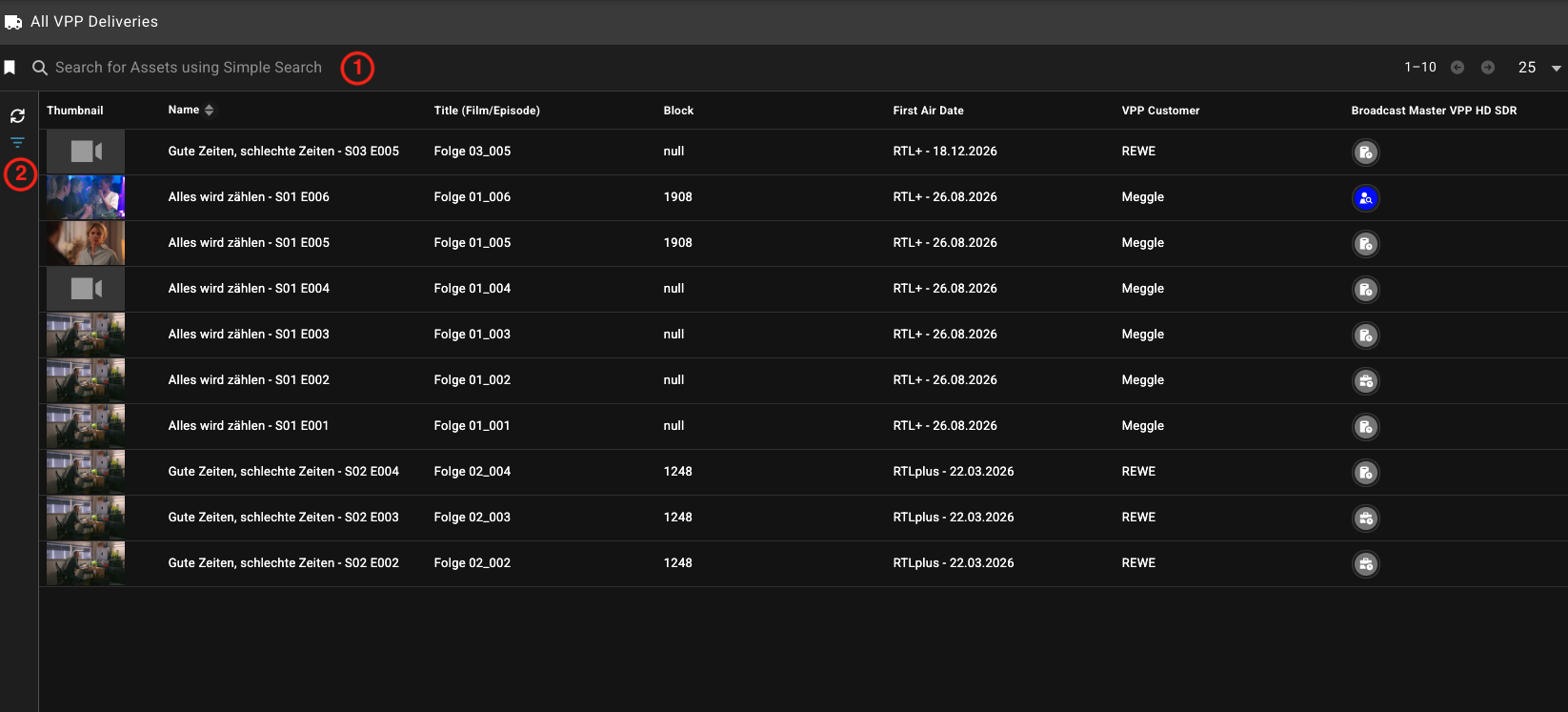
The “All VPP Deliveries” page contains a tabular overview (Asset List) of all episodes or movies for which the operator’s VPP Studio is responsible.
Relevant information is presented in a total of seven columns:
- Thumbnail: Thumbnail image is generated when the video is first uploaded
- Name: Asset alias, for example, “Alpentod - S01 E001”
- Title (Film/Episode): Movie or episode title, for example, “Episode 8780”
- Block: Block number for RTL daily soaps, for example, “547”
- First Air Date: Original air date on RTL Deutschland
- VPP Customer: VPP Campaign Client
- Broadcast Master VPP HD SDR: Overview of the Broadcast Master VPP Delivery Status
The table is presorted by First Air Date. Filter and search options allow you to narrow down the results. You can perform a keyword search using the search bar (item 1 in the screenshot). This search function searches all data fields and is therefore less specific. For a more targeted search — for example, by block numbers or series titles — use the Search Queries (2). You can also use the Search Queries to change the sort order of the assets. Additionally, searches can be saved as Saved Queries for quick reuse.
For more information, see the following page (available only in German):
Further Gateway pages
Further information on Supplier Notifications is available on the following pages (available only in German):
Supplier Notification Notification Mails
The support page contains relevant information and links related to Broadcast Master HD SDR and Rally. In addition to the RTL Support Portal, the support page in the Gateway is the first place to go to troubleshoot issues on your own.